
If you already use Microsoft 365, you probably do not need another place for your work to live.
You need help making sense of what is already there.
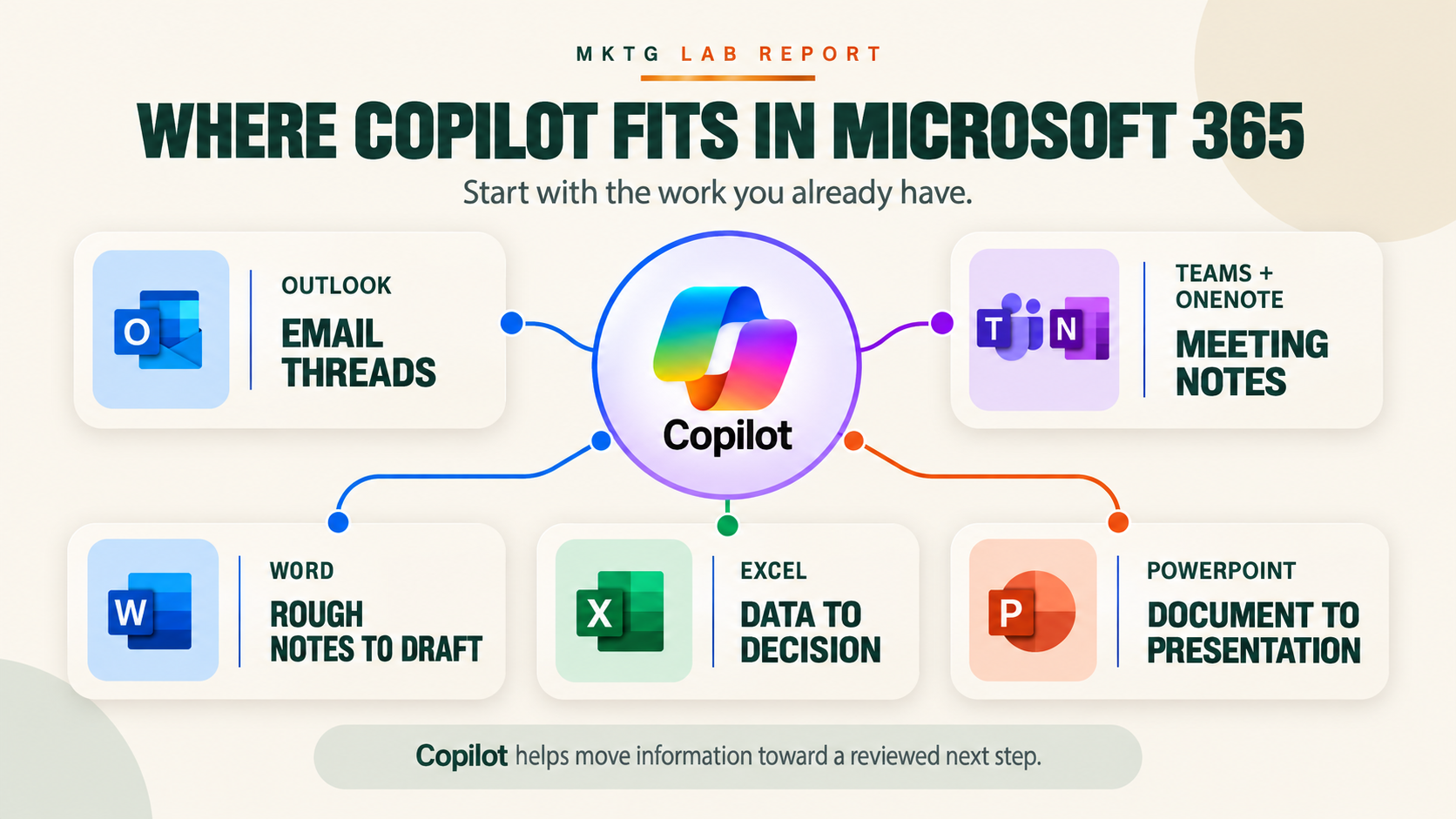
The email thread you need to answer is in Outlook. The meeting you need to follow up on happened in Teams. Your notes are in OneNote. The draft is in Word. The numbers are in Excel. The presentation is waiting in PowerPoint.
The challenge is often not creating more information. It is finding what matters, moving that information forward, and turning it into a decision or next step.
That is where Microsoft Copilot can be useful.
As I have worked with AI in my own projects, one lesson keeps coming back: the most useful workflow rarely begins with the technology. It begins with a real task that is taking too long, creating confusion, or repeatedly starting from scratch.
Copilot does not change that principle. It simply gives you another way to work with information inside the Microsoft tools you may already use.
You might use it to:
- Understand a long email conversation
- Turn meeting notes into clear actions
- Develop a first draft from an outline
- Ask better questions about a spreadsheet
- Turn an approved document into a presentation
You do not have to begin with all of those.
In fact, I would not recommend it.
Start with one repeated task. Use information you are permitted to use. Review the result carefully. Then decide whether the workflow actually made the work clearer, faster, or more useful.
This guide will show you how to do that without assuming that you work for a large company, have an advanced technical background, or have access to every Copilot feature.
What is Microsoft Copilot?
Microsoft Copilot is Microsoft's AI assistant.
In practical terms, it can help you ask questions, summarize information, draft or revise content, analyze data, and prepare work in Microsoft 365. What it can access and what it can do will depend on the account, subscription, application, and organizational settings you are using.
That last sentence matters.
Copilot is not one identical experience for every person.
You may encounter it in several places:
- The Microsoft Copilot app
- Copilot Chat
- Outlook
- Teams
- OneNote
- Word
- Excel
- PowerPoint
Microsoft previously called its work-focused app the Microsoft 365 Copilot app. The current name is the Microsoft Copilot app. When you sign in, the experience adjusts to the account you are using. A work or school account may provide access to organizational information and protections that are different from a personal Microsoft account. Microsoft explains the current app and account distinction here.
Copilot can also appear directly inside a Microsoft 365 application.
For example, Copilot in Word can help you understand, draft, or revise a document. Copilot in Excel can help you explore a table or identify patterns. Copilot in Outlook can help you summarize a conversation or prepare a response.
Those experiences are related, but they are not always interchangeable. Some work only with the item you currently have open. Others may be able to reference permitted files, emails, chats, meetings, or other work information. Some advanced capabilities require an additional license or an administrator to enable them.
The good news is that you do not have to understand every product name before you begin.
You need to answer three simpler questions:
- Which account am I using?
- Where does the information for this task live?
- What Copilot capability is available to me here?
What Copilot can help with
For a beginner, five categories are enough:
Summarize. Reduce a long document, email thread, meeting recap, or set of notes into the information you need to review.
Organize. Separate decisions, questions, tasks, owners, dates, themes, or risks.
Draft. Turn notes or approved sources into a first version of a document, response, outline, or presentation.
Analyze. Ask questions about structured information in a spreadsheet and explore changes, patterns, or exceptions.
Transform. Move approved information from one useful format into another, such as turning a document into a presentation outline.
These are useful starting points because they describe work people already do. They do not require you to invent an AI project just to say you are using AI.
What Copilot does not do for you
Copilot does not automatically know what matters most to your business.
It can summarize a thread, but it may not understand that one customer concern is more important than five routine messages. It can draft a proposal, but it does not know which promise you are prepared to make. It can identify a change in a spreadsheet, but it may not know what caused that change.
It can also make mistakes.
Names, dates, figures, formulas, quotations, and conclusions still need to be checked. A polished response is not the same as a correct response.
The person using Copilot remains responsible for:
- Choosing the right source information
- Giving the task enough context
- Protecting sensitive information
- Reviewing the result
- Making the final decision
- Approving anything that will be sent, shared, presented, or published
Think of Copilot as a capable assistant working beside you. It can help you move through information, but it should not quietly become the person making decisions on your behalf.
Before you begin, check your Copilot access
One of the most frustrating parts of getting started is discovering that the feature shown in a video or article does not appear on your screen.
That does not always mean you are doing something wrong.
Microsoft Copilot capabilities can vary based on your account, subscription, assigned license, organizational settings, application, device, language, region, and product rollout. Microsoft also uses labels such as Copilot Chat (Basic), M365 Copilot (Basic), and M365 Copilot (Premium) to show which experience is associated with an account.
Microsoft maintains a current explanation of Copilot labels and licenses. Check that page before making a purchasing decision or assuming a feature is included.
This guide is not a pricing comparison because plans and features can change. Instead, use the steps below to understand your starting point.
Step 1: Confirm which account you are using
Look at the account shown in Microsoft Copilot or the Microsoft 365 application.
A personal Microsoft account is commonly connected to personal Microsoft services and subscriptions.
A work or school account is managed through an organization and is usually connected to a work or school email address. Your organization may control which Copilot features are available and how work information can be used.
If you have more than one account, do not assume that the open document and the Copilot experience belong to the same environment. Confirm the account before adding a file or asking Copilot to work with business information.
Step 2: Look for the Copilot label and icon
In the Microsoft Copilot app, check the account area for the label associated with your experience.
In Outlook, Word, Excel, PowerPoint, or OneNote, look for the Copilot icon or chat pane. If it does not appear, the feature may not be included, enabled, supported in that version of the app, or available to that account.
Microsoft's current guide to Copilot Chat in Microsoft 365 apps explains how capabilities differ across Outlook, Word, Excel, PowerPoint, and OneNote.
Step 3: Identify what Copilot can use
Before writing a prompt, ask:
- Is Copilot working only with the item I currently have open?
- Can I deliberately attach or reference a file?
- Can it use permitted work information such as email, meetings, chats, or documents?
- Is it using information from the public web?
Do not assume that Copilot can see everything in Microsoft 365. It should operate within the access available to your account, but the specific sources it can use depend on the experience and task.
Step 4: Choose the appropriate starting path
| If this describes your access | Start here |
|---|---|
| You have Copilot Chat but limited work context | Ask a web-grounded question or deliberately provide one approved file. |
| Copilot appears inside the Microsoft 365 app you are using | Begin with the email, document, spreadsheet, notebook page, or presentation currently open. |
| Copilot can reference broader work information | Select only the permitted files, emails, meetings, or chats required for the task. |
| You do not see the integrated feature | Complete the task with ordinary Microsoft 365 tools, or use an organization-approved assistant with manually selected and appropriately redacted material. |
If this describes your access
You have Copilot Chat but limited work context
Start here
Ask a web-grounded question or deliberately provide one approved file.
If this describes your access
Copilot appears inside the Microsoft 365 app you are using
Start here
Begin with the email, document, spreadsheet, notebook page, or presentation currently open.
If this describes your access
Copilot can reference broader work information
Start here
Select only the permitted files, emails, meetings, or chats required for the task.
If this describes your access
You do not see the integrated feature
Start here
Complete the task with ordinary Microsoft 365 tools, or use an organization-approved assistant with manually selected and appropriately redacted material.
If a feature is unavailable, do not move confidential information into an unapproved tool simply to recreate it.
The workflow matters more than forcing the same technology into every situation.
Use one prompt structure in every Microsoft 365 app
A useful prompt is not about finding a magic sentence.
It is about giving Copilot enough direction to understand the job.
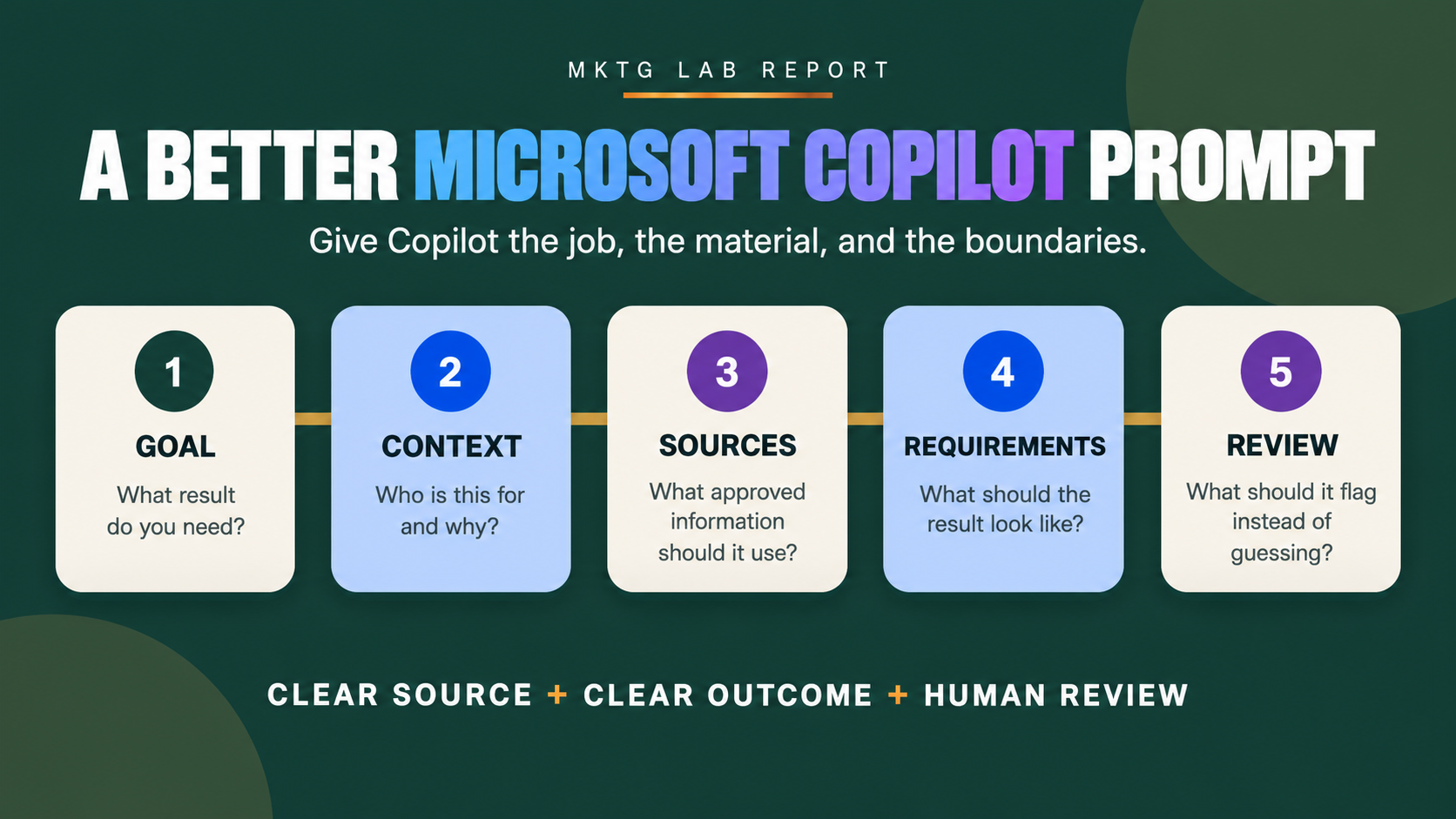
You can do that with five elements:
- Goal
- Context
- Sources
- Requirements
- Review
1. Goal: What result do you need?
Start with the task, not the technology.
Weak:
Help me with this.
Stronger:
Help me prepare for tomorrow's client progress meeting.
The second version gives Copilot a destination.
2. Context: Who is this for, and why does it matter?
Add the situation, audience, and purpose.
This is a 30-minute review with a small-business client.
The meeting needs to confirm what has been completed,
resolve two open questions, and agree on next week's priorities.
Context helps Copilot choose what to emphasize. Without it, the response may be accurate but not useful.
3. Sources: What information should Copilot use?
Name or attach the approved sources.
Use the current project brief and the Outlook thread from this week.
When possible, ask Copilot to cite or identify where important information came from. That makes the result easier to verify.
Avoid the vague instruction to “use everything.” More information is not always better. Choose the smallest useful source set.
4. Requirements: What should the result look like?
Specify the structure, length, tone, and boundaries.
Separate completed work, open questions, decisions needed,
and the three most important next steps.
Keep the summary to one page.
Requirements turn a general response into something you can use.
5. Review: What should Copilot expose instead of guessing?
Ask it to identify uncertainty.
Identify the source for each important claim.
Mark anything missing, unclear, or unsupported instead of guessing.
This does not guarantee a perfect answer. It gives you a better way to inspect the answer.
A reusable Microsoft Copilot prompt
Help me [GOAL].

This is for [AUDIENCE OR SITUATION],
and it needs to help them [PURPOSE].

Use only [APPROVED SOURCES].

Organize the result into [REQUIRED STRUCTURE].
Keep it [LENGTH, TONE, OR FORMAT].

Identify the source for important claims.
Mark anything missing, unclear, or unsupported instead of guessing.
You can use this structure in Copilot Chat or adapt it inside Outlook, Teams, OneNote, Word, Excel, and PowerPoint.
The details will change. The method does not.
Choose your first Copilot task
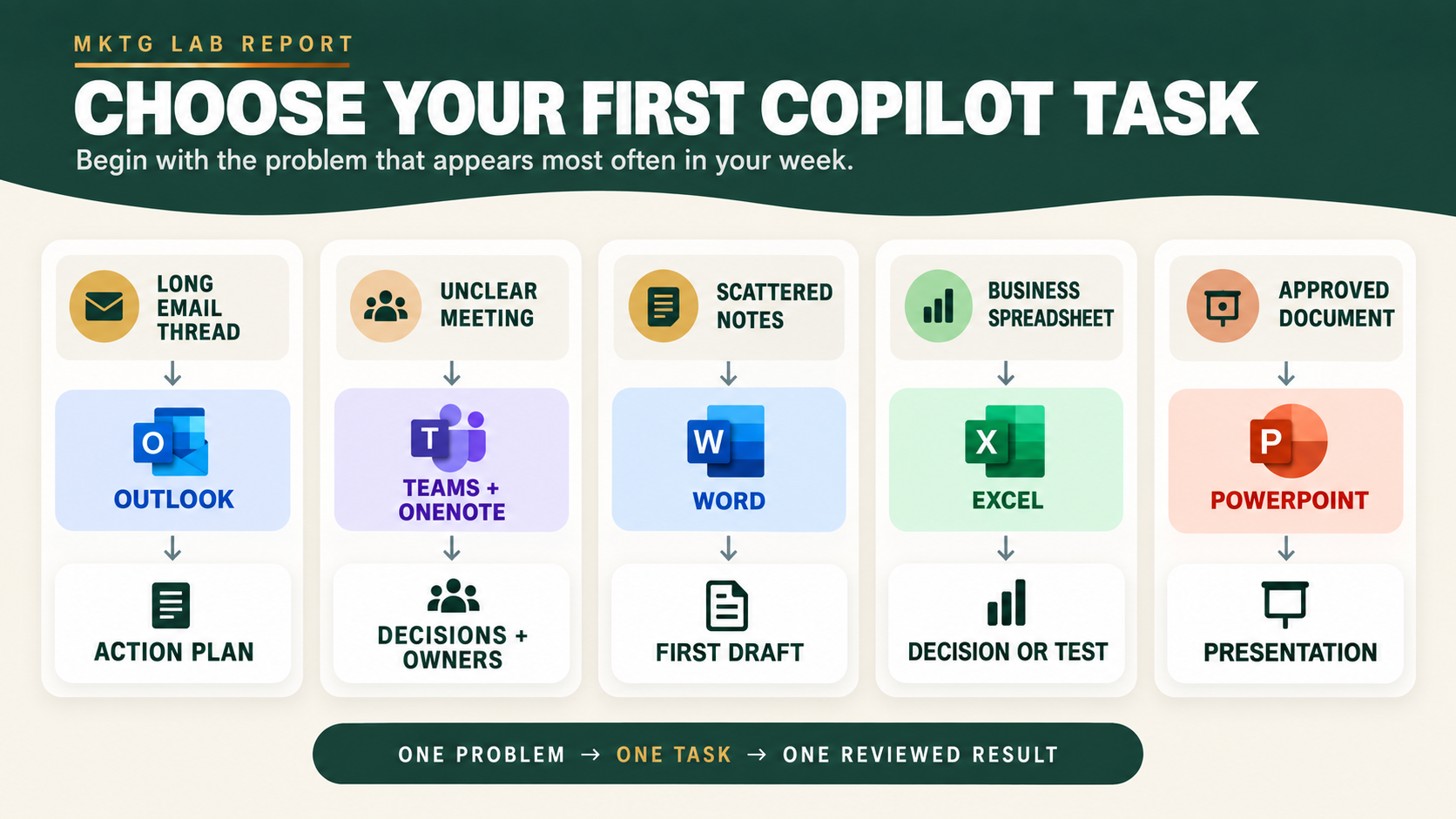
You do not need to work through these examples in order. Start with the problem that appears most often in your week.
| If you need to… | Start in… | The useful result is… |
|---|---|---|
| Understand a long email conversation | Outlook | A reviewed action plan and response draft |
| Clarify what happened in a meeting | Teams or OneNote | Confirmed decisions, owners, dates, and open questions |
| Shape scattered notes into something useful | OneNote and Word | A structured first draft for a specific reader |
| Understand what a table is telling you | Excel | A verified observation, decision, or follow-up test |
| Present an approved recommendation | Word and PowerPoint | A reviewable presentation story and slide plan |
If you need to…
Understand a long email conversation
Start in…
Outlook
The useful result is…
A reviewed action plan and response draft
If you need to…
Clarify what happened in a meeting
Start in…
Teams or OneNote
The useful result is…
Confirmed decisions, owners, dates, and open questions
If you need to…
Shape scattered notes into something useful
Start in…
OneNote and Word
The useful result is…
A structured first draft for a specific reader
If you need to…
Understand what a table is telling you
Start in…
Excel
The useful result is…
A verified observation, decision, or follow-up test
If you need to…
Present an approved recommendation
Start in…
Word and PowerPoint
The useful result is…
A reviewable presentation story and slide plan
For your first attempt, use information that is low risk and familiar enough for you to recognize a mistake. If you are uncertain about business or customer information, read Protect sensitive business and customer information before beginning.
Starter task 1: Turn an email thread into an action plan
Email is a useful place to begin because the problem is familiar.
A conversation starts with one question. Several people reply. The subject changes. Someone suggests a date. Someone else adds an attachment. By the time you return to the thread, you are trying to determine what was decided, what is still open, and whether you promised to do something.
Copilot can help organize that information before you respond.
Depending on your access, Copilot in Outlook can summarize an open conversation and may provide citations that return you to the supporting messages. Copilot Chat in Outlook can also work with inbox and calendar information at different levels based on the account and license. Microsoft documents the current email-thread summary experience in Outlook.
The objective is not to let Copilot answer email without you.
The objective is to reduce the time required to understand the conversation and prepare a response you can approve.
This task works well for a business owner returning to a vendor conversation, a consultant confirming client decisions, or a creator reviewing a collaboration. Choose one thread with a clear purpose and avoid your most sensitive or high-stakes conversation while you learn.
How to try it
- Open one relevant conversation instead of asking Copilot to review your entire inbox.
- Ask it to separate decisions, questions, dates, requested actions, and commitments.
- Return to the supporting messages and correct the summary.
- Ask for a response only after the action plan is accurate.
- Review the recipients, attachments, dates, tone, and promises before sending.
Summarize this email thread for me.

Separate:
- Decisions already made
- Unanswered questions
- Dates or deadlines
- Actions requested from me
- Commitments I appear to have made

Identify the source message for each important item.
Do not treat a suggestion as an approved decision.
Check the result against the original messages. Pay attention to tentative language such as “could” or “might,” dates that changed, missing attachments, and decisions proposed by someone without approval authority.
Once the action plan is accurate, continue with a second prompt:
Using the reviewed summary, draft a concise response.

Confirm the decisions and next steps.
Answer the questions that have enough information.
Ask for clarification wherever the thread is incomplete.

Do not add a new deadline, price, approval, or commitment.
Use a warm, direct, and professional tone.
A simple example
Imagine an independent consultant returning to an 18-message thread about a website project.
The conversation includes feedback on the homepage, a request for new images, two possible review dates, and a suggestion that another person should approve the final copy.
A weak summary might say:
The team approved the homepage and scheduled the final review.
That sounds clear, but it may be wrong.
A more useful result separates the evidence:
- The homepage direction received positive feedback, but final approval was not stated.
- New images were requested.
- Tuesday and Thursday were both proposed for review.
- The person responsible for copy approval was suggested but not confirmed.
The second version does not just sound more careful. It gives the consultant a useful response:
- Confirm whether the homepage is approved.
- Request the images.
- Ask the group to select a review date.
- Confirm the copy approver.
Copilot helped organize the conversation. The consultant still made the judgment and sent the message.
What to review and measure
Confirm the names, roles, dates, approval status, attachments, recipients, and every commitment attributed to you. Make sure the response answers the right questions and sounds like you.
For the first few tests, record how long it took to understand the thread, how many corrections the summary required, and whether the final response reduced follow-up questions. Saving ten minutes is useful. Avoiding one incorrect commitment may be more useful.
Starter task 2: Turn meeting notes into decisions and next steps
Meetings often produce plenty of conversation and very little clarity.
Someone shares an idea. Another person agrees with part of it. A date is mentioned. A task is implied. By the next morning, everyone remembers the discussion a little differently.
Copilot can help turn a permitted Teams recap, transcript, or OneNote page into a more useful record. The goal is not to create a perfect summary of everything that was said. It is to separate what was actually decided from what still needs an owner, a date, or another conversation.
This can be useful for a two-person business, a volunteer group, a creator working with contractors, or a larger team. The size of the meeting matters less than the cost of leaving it without clear next steps.
Microsoft explains that a Teams recap can bring together items such as the recording, transcript, shared files, notes, agenda, and follow-up tasks. Some AI-generated recap features require an eligible Copilot or Teams Premium license, and the meeting generally needs to be transcribed. If that experience is not available, you can apply the same process to approved notes in OneNote. See Microsoft's current guidance for meeting recap in Teams and Copilot in OneNote.
How to try it
- Open a permitted meeting recap, transcript, or notebook page.
- Decide what you need from it: decisions, actions, owners, dates, open questions, or all five.
- Ask Copilot to use only that source and to mark missing information instead of guessing.
- Compare the result with the original notes or recording.
- Confirm every owner and date before sharing the follow-up.
Using only this meeting recap or notebook page, organize the information into:
- Decisions made
- Action items
- Named owners
- Due dates
- Open questions
- Risks or dependencies

Write "not assigned" when an owner or date was not stated.
Do not invent agreement or attribute a statement without support.

End with a short follow-up message asking participants
to correct anything that is incomplete.
A simple example
Imagine a small retailer meeting with a freelance designer about a holiday promotion.
The group discusses three possible offers, mentions that photography should happen in October, and agrees that the designer will develop a first concept. No one clearly selects the final offer or names the person responsible for booking the photographer.
A weak summary might turn the discussion into decisions that were never made.
A more useful result would say:
- Decision: The designer will prepare an initial campaign concept.
- Offer: Not selected.
- Photography date: October was discussed; no date was confirmed.
- Photography owner: Not assigned.
- Open question: Which offer should the campaign feature?
That record gives the owner something useful to send. It also makes the missing decisions visible before they become delays.
What to review and measure
Check the transcription quality, participant names, decisions, owners, dates, and statements attributed to individuals. If the meeting involved sensitive information, confirm that the recap and its audience follow your organization's policies.
To measure the value, track how many action items leave the meeting with a confirmed owner and date. A shorter summary is helpful. Clearer ownership is better.
Starter task 3: Turn rough notes into a clear document
Many useful documents begin as fragments.
You may have a OneNote page with customer questions, a few observations from a sales call, and a rough list of what a guide should include. The thinking is there, but it has not yet become something another person can understand or use.
Copilot can help shape those approved notes into a first draft in Word. This works best when you define the document, the reader, and the action you want the reader to take. Without that direction, you may receive polished paragraphs that do not solve the real communication problem.
Microsoft's current Copilot in Word guidance describes drafting, rewriting, summarizing, and asking questions about a document. Feature availability can still vary by account and organization.
How to try it
- Gather the notes that are approved for the task.
- Name the document you need, such as a customer guide, proposal, brief, update, or plan.
- Define who will read it and what they should understand or do next.
- Give Copilot the structure you want.
- Require questions or placeholders wherever evidence, approval, pricing, or dates are missing.
- Review the draft in your own voice before sharing it.
Turn these approved notes into a [DOCUMENT TYPE] for [AUDIENCE].

The document should help the reader [PURPOSE].
Use this structure:
[SECTIONS]

Preserve the facts and examples in the notes.
Mark missing evidence, dates, prices, approvals, or commitments
as questions instead of inventing them.

Use plain language and end with one clear next action.
A simple example
Imagine the owner of a home-services business has collected repeated customer questions about preparing for an appointment.
The notes include reminders about parking access, pets, fragile items, arrival windows, and the information the technician will need. Instead of rewriting the same email for every customer, the owner asks Copilot to organize the approved notes into a one-page preparation guide.
Copilot can help group related instructions, remove repetition, and propose a clearer order. The owner still needs to confirm the arrival policy, make sure no promise was added, and rewrite any language that sounds unlike the brand.
The result is not valuable because AI wrote it. It is valuable if customers arrive better prepared and the business answers fewer avoidable questions.
What to review and measure
Check every claim, price, promise, date, approval, and piece of contractual language. Confirm that the draft reflects the original notes and not an assumption that merely sounds reasonable.
To measure the value, record the time from scattered notes to a reviewable draft. Then watch what happens after the document is used: Do readers understand it? Do they take the intended next step? Do the same questions continue to appear?
Starter task 4: Ask a spreadsheet a business question
A spreadsheet can contain accurate numbers and still leave you unsure what to do.
That is why the best starting point is not, “Make me a chart.” It is a business question.
You might want to know which products are losing momentum, which content topics lead to the most meaningful engagement, which projects are using more hours than expected, or where a budget changed most sharply.
Copilot in Excel can help explore patterns, create formulas and visualizations, and surface observations. Its current capabilities and interface depend on your account and version, so use Microsoft's getting-started guidance for Copilot in Excel as the current reference.
Before asking for an explanation, make the table understandable. Use consistent headers, dates, categories, and formats. Remove accidental duplicate records. A confident analysis of disorganized data is still an unreliable analysis.
How to try it
- Choose one decision the spreadsheet should support.
- Confirm the relevant data range and time period.
- Ask Copilot to check for missing values, inconsistent labels, duplicates, and unusual entries first.
- Ask it to separate what the data shows from possible explanations.
- Require the rows, columns, formulas, or calculations behind each observation.
- Verify the work before acting.
Analyze this table to help me decide [DECISION].

First check for missing values, inconsistent labels,
duplicates, date problems, and unusual values.

Then identify the most important changes, segments, and exceptions.
Separate what the data shows from possible explanations.

Recommend no more than three follow-up questions or tests.
Show the rows, columns, formulas, or calculations supporting each observation.
A simple example
Imagine a creator tracking posts by topic, platform, reach, saves, comments, website visits, and inquiries.
The creator asks which topics deserve another month of testing. Copilot notices that one topic produces modest reach but a high number of website visits, while another produces strong reach and very few meaningful actions.
That is an observation. It is not yet an explanation.
The next step may be to compare calls to action, formats, posting dates, or audience sources. Copilot can help identify the question, but it should not declare that one topic “caused” better results without evidence.
What to review and measure
Check the range, totals, formulas, date filters, categories, duplicates, and any explanation that goes beyond the data. If a surprising finding could change a budget or business decision, reproduce the calculation yourself.
Measure success by the decision or test the analysis produces—not by the number of charts. If you want a fuller process for building a useful reporting system, see How to Build a Marketing Dashboard With AI.
Starter task 5: Turn an approved document into a presentation
Building a presentation often involves two different jobs: deciding what the story should be and designing the slides that tell it.
Copilot can help with both, but the quality of the result depends heavily on the source. A loose collection of notes will usually produce a loose presentation. An approved document with a clear recommendation gives Copilot a much stronger foundation.
Microsoft's current Copilot in PowerPoint FAQ explains the available ways to create, summarize, and ask questions about presentations. Supported source types and features can vary by license.
How to try it
- Finalize the source document before creating the slides.
- Define the audience, setting, decision, and approximate presentation length.
- Ask for a story and slide structure before focusing on design.
- Keep one main idea per slide.
- Replace generic imagery and remove facts that are not in the source.
- Prepare for the questions the audience is likely to ask.
Create a [NUMBER]-slide presentation from this approved document for [AUDIENCE].

The presentation should help them [DECIDE, UNDERSTAND, OR DO SOMETHING].
Begin with the problem, show the relevant evidence,
explain the recommendation, and end with the next decision.

Keep one main idea per slide.
Do not add facts or examples that are not in the source.

Include concise speaker notes and five questions
the audience may ask.
A simple example
Imagine an independent consultant has completed a six-page recommendation for a client. The document explains the problem, summarizes customer feedback, compares three options, and recommends a 90-day pilot.
Copilot can turn that approved document into a proposed presentation narrative. It might suggest an opening slide that frames the decision, a small group of evidence slides, one recommendation slide, and a final slide that asks for approval of the pilot.
The consultant should still decide what belongs on screen, what belongs in the speaker notes, and what the audience needs in the room. They should also replace generic images, check the accessibility of the deck, and make sure the client's branding is used correctly.
The goal is not to fill slides faster. It is to reach a clear, credible conversation sooner.
What to review and measure
Check the story, evidence, branding, image relevance, accessibility, speaker notes, and appropriateness for the audience. Compare every important claim with the approved source.
To measure the value, compare the time required to reach a reviewable storyboard. Also count how many unsupported additions you had to remove. A faster first draft is only useful if it remains grounded.
Review the result before you use it
Review is not cleanup after the workflow. It is part of the workflow.
Use this checklist whenever Copilot helps summarize, draft, analyze, or transform your work:
- Source: Can you return to the original email, meeting, note, document, or data?
- Accuracy: Are the names, facts, dates, figures, formulas, and quotations correct?
- Context: Did Copilot misunderstand why something matters?
- Permissions: Are you allowed to use and share the source material?
- Voice: Does the result sound like you or your organization?
- Commitments: Did it invent an approval, promise, price, owner, or deadline?
- Action: Does the result help someone make a decision or complete a task?
The final question matters. A clean summary that changes nothing may still be unnecessary work.
Protect sensitive business and customer information
Copilot's protections depend on the account and environment you are using.
Microsoft states that, for eligible organizational use with enterprise data protection, prompts, responses, and Microsoft Graph data are not used to train the underlying foundation models. Existing permissions, sensitivity labels, retention policies, and organizational controls still matter. Web-grounded queries are also handled differently from work content, which is why the simple claim that information “never leaves Microsoft 365” is not precise enough. Review Microsoft's current documentation for enterprise data protection and privacy in Microsoft Copilot.
Before using business information with any AI assistant:
- Confirm which account and environment you are using.
- Follow the policies of the organization that owns the information.
- Use only assistants approved for that material.
- Share only the files, emails, meetings, or notebook pages required for the task.
- Do not provide confidential customer, employee, financial, health, legal, credential, or regulated information without authorization.
- Understand whether web grounding is enabled.
- Verify the result before saving, sending, presenting, or publishing it.
If you are unsure whether a source is appropriate, stop and ask the person responsible for privacy, security, or compliance. Convenience is not permission.
What to do when your Copilot looks different
Microsoft's product names, labels, and interfaces continue to evolve. Two people can follow the same tutorial and see different options because they are using different accounts, subscriptions, apps, update channels, or organization settings.
If a feature in this guide is missing:
- Confirm the account shown in the app.
- Check the Copilot label and subscription associated with that account.
- Try the current web or desktop Microsoft Copilot experience.
- Confirm that the Microsoft 365 app is supported and up to date.
- Ask your administrator whether the feature or license is enabled.
- Use the ordinary Microsoft 365 tools to complete the workflow manually if the integrated feature is unavailable.
- Do not move sensitive information to an unapproved AI assistant simply to recreate a missing feature.
The workflow is more durable than the location of a button. You can still define the source, outcome, instructions, boundaries, review, and measure even when the interface changes.
Run a seven-day Copilot pilot
The easiest way to learn Copilot is to test one useful task several times.
Do not try all five starter tasks at once. Choose the one that matches a problem you already have.
Day 1: Choose one repeated problem
Pick a task that happens at least once a week. Use low-risk information while you learn.
Day 2: Establish the current baseline
Record how long the task normally takes, where mistakes or delays occur, and what a good result looks like.
Days 3–5: Run the workflow three times
Use the same basic prompt structure. Save the prompt, the review checklist, and a short note about what Copilot misunderstood each time.
Day 6: Improve the workflow
Clarify the source, outcome, instructions, boundaries, and review criteria. Remove any step that does not improve the result.
Day 7: Decide
Choose one of three outcomes:
- Keep the workflow
- Revise it and test again
- Stop using it
Judge the pilot by time, accuracy, clarity, and whether it produced a useful action. Do not judge it by how impressive the response sounded.
Start with one task, not every feature
You do not need to master every Microsoft 365 app before Copilot can be useful.
You also do not need to collect dozens of prompts.
Choose one repeated problem. Give Copilot a clear source and outcome. Add boundaries. Review the result. Measure whether the work actually improved.
That small cycle will teach you more than trying every feature once.
If you want to build beyond Microsoft 365, 7 Practical AI Workflows You Can Use to Grow Your Business or Brand explains the broader method across customer research, content, reporting, planning, and everyday operations.
The most useful AI system is rarely the one with the most tools. It is the one you understand well enough to trust, question, and improve.
Start with one task this week. Then let the evidence decide what comes next.