
If you already use Google Workspace, your work probably does not live in one place.
The customer conversation is in Gmail. The meeting happened in Google Meet. The background information is in Drive. The draft is in Docs. The numbers are in Sheets. The presentation is waiting in Slides.
The challenge is often not creating more information.
It is finding what matters, connecting information from the right sources, and turning it into a decision or next step.
That is where Google Gemini can be useful.
As I have worked with AI in my own projects, one lesson keeps coming back: the best place to begin is not with the technology. It is with a real task that takes too long, creates confusion, or keeps starting from scratch.
Gemini can help with those everyday tasks. You might use it to summarize a conversation, organize meeting notes, develop a first draft, make sense of a spreadsheet, or plan a presentation.
But the most useful starting point is rarely to open every Google application and look for an AI button.
Start with one repeated task. Use information you are allowed to use. Give Gemini a clear job. Review the result. Then decide whether it made the work clearer, faster, or more useful.
You might begin by using Gemini to:
- Understand a long Gmail conversation
- Turn meeting information into decisions and actions
- Shape scattered notes into a useful Google Doc
- Ask a business question about a Google Sheet
- Turn an approved recommendation into a presentation plan
You do not have to begin with all five.
In fact, I would not recommend it.
This guide will help you choose one useful starting point without assuming that you work for a large company, have an advanced technical background, or have access to every Gemini feature.
What is Google Gemini?
Google Gemini is Google's AI assistant. You can ask it questions, use it to summarize information, turn notes into a draft, or get help making sense of a spreadsheet.
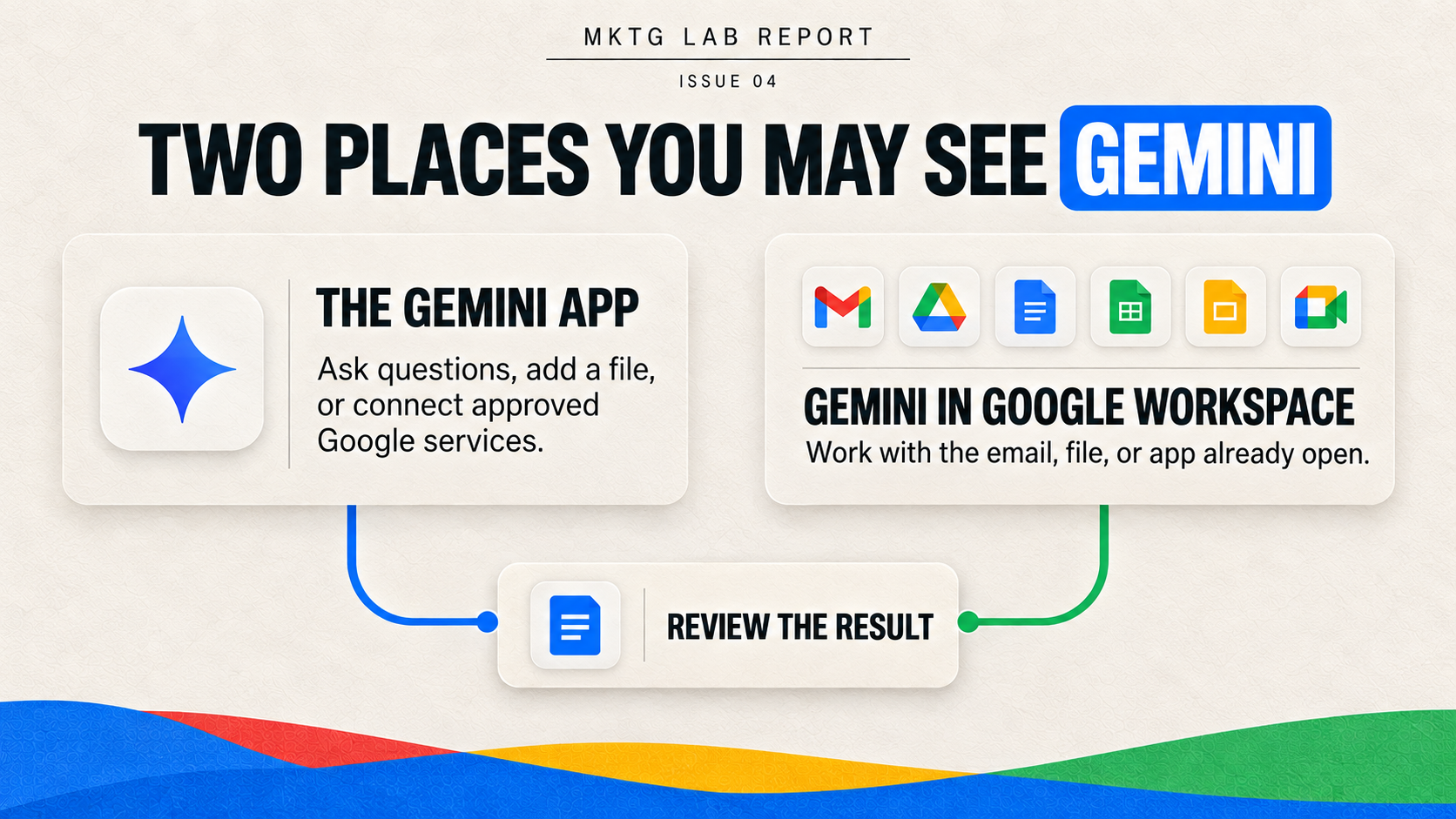
There are two common places you may see it: the Gemini app and the Google Workspace apps you already use.
The Gemini app
You can think of the Gemini app as a place to ask questions, work through ideas, and get help with a task. You can use it on the web and, depending on your device and account, in the mobile app.
You might use it to brainstorm, research a topic, create a draft, or work with a file you choose to add. If your account allows it, Gemini may also be able to find information in Google services such as Gmail, Docs, or Drive.
That does not mean it can automatically see everything in your account. What Gemini can find or do depends on your account, settings, and which connections are turned on. Google explains the current options in its guide to connecting Google Workspace to Gemini Apps.
Gemini inside Google Workspace
Gemini can also appear inside the Google Workspace apps you already use. You may see an Ask Gemini button, a side panel, a writing tool, or a summary feature in:
- Gmail
- Drive
- Docs
- Sheets
- Slides
- Meet
- Chat
This version can feel more direct because the work may already be open in front of you. In Gmail, Gemini can help you work through an email conversation. In Docs, it can help you develop or revise a document. In Sheets, it can help you explore a table.
The Gemini app and Gemini inside Google Workspace are related, but they do not always have access to the same information or features. Before you begin, check which account you are using, where Gemini appears, and what information it can use for that task.
What Gemini can help with
For a beginner, five categories are enough.
Summarize. Pull the main points from an email conversation, meeting recap, document, presentation, or small group of files.
Organize. Separate decisions, questions, actions, owners, dates, themes, or risks.
Draft. Turn approved notes or sources into a first version of an email, document, outline, or presentation plan.
Explore data. Ask questions about a Sheet and look for changes, patterns, or unusual results.
Reuse. Turn information you have already checked into another useful format, such as a document outline into a presentation plan.
These are useful starting points because they describe work people already do. You do not have to invent an AI project just to say you are using AI.
What Gemini does not do for you
Gemini does not automatically know what matters most to your business.
It can summarize a Gmail conversation, but it may not understand that one customer concern matters more than five routine replies. It can draft a proposal, but it does not know which promise you are prepared to make. It can identify a change in a Sheet, but it may not know what caused the change.
Gemini can also make mistakes.
It may select an older email instead of the newest one, misunderstand a source, create an incorrect formula, or give an explanation that sounds confident but is not supported. Always review the original information and double-check anything important.
A polished response is not the same as a correct response.
The person using Gemini remains responsible for:
- Choosing the right source information
- Giving the task enough context
- Protecting sensitive information
- Reviewing names, dates, figures, formulas, quotations, and claims
- Making the final decision
- Approving anything that will be sent, shared, presented, or published
Think of Gemini as an assistant working beside you. It can help you move through information, but it should not quietly become the person making decisions on your behalf.
Before you begin, check your Gemini access
One of the most frustrating parts of getting started is seeing a Gemini feature in a video or article and discovering that it does not appear on your screen.
That does not always mean you are doing something wrong.
Google does not give every account the same Gemini features at the same time. Your screen may look different because of the account or plan you use, settings controlled by your organization, the Google app you have open, your language or location, or whether Google has made the feature available to your account yet.
You do not need to memorize every plan. You only need to understand what is available to you now.
Google maintains a current overview of requirements and features for Google Workspace with Gemini. Check that page before purchasing a plan or assuming that a specific feature is included.
Step 1: Confirm which Google Account you are using
Look at the account shown in the Gemini app or the Google Workspace application.
A personal Google Account is the account you may use for personal Gmail and other Google services.
A work or school Google Workspace account is managed by an organization. That organization may decide which Gemini features are available and what kind of work information you are allowed to use.
If you use more than one Google Account, do not assume the open file and Gemini are using the same one.
Confirm the account before asking Gemini to find an email, open a file, or work with business information.
Step 2: Find where Gemini is available
In the Gemini app, check which account is active and whether it can connect to Google Workspace services.
In Gmail, Drive, Docs, Sheets, Slides, Meet, or Chat, look for an Ask Gemini icon, side panel, bottom bar, or inline AI feature.
If you do not see it, the feature may not be included in your plan, turned on for your account, available in that app, or allowed by your organization.
Step 3: Identify what Gemini can use
Before writing a prompt, ask:
- Is Gemini working only with the item I currently have open?
- Can I choose a file for Gemini to use?
- Can it find information from Gmail, Drive, or another connected Google service?
- Is it also using information from the public web?
- Can it take an action, or can it only read and summarize information?
Do not assume that Gemini can see every file, message, meeting, or calendar item.
Use only the few emails or files you actually need.
Step 4: Choose the best place to begin
| If this describes your access | Start here |
|---|---|
| You have the Gemini app without Workspace connections | Begin with a general task or one approved file you choose to add. |
| The Gemini app can connect to Google services | Ask for one specific email, file, event, task, or note and review what Gemini used. |
| Gemini appears inside the Workspace app you are using | Begin with the email, document, spreadsheet, presentation, or file currently open. |
| You use a work or school account with limited features | Follow your organization's policy and ask which Gemini tools and information are approved. |
| You do not see Gemini in the app | Complete the task with the regular Google Workspace tools or another approved assistant using carefully selected information. Remove private details when needed. |
If this describes your access
You have the Gemini app without Workspace connections
Start here
Begin with a general task or one approved file you choose to add.
If this describes your access
The Gemini app can connect to Google services
Start here
Ask for one specific email, file, event, task, or note and review what Gemini used.
If this describes your access
Gemini appears inside the Workspace app you are using
Start here
Begin with the email, document, spreadsheet, presentation, or file currently open.
If this describes your access
You use a work or school account with limited features
Start here
Follow your organization's policy and ask which Gemini tools and information are approved.
If this describes your access
You do not see Gemini in the app
Start here
Complete the task with the regular Google Workspace tools or another approved assistant using carefully selected information. Remove private details when needed.
If a feature is unavailable, do not move confidential information into a personal account or an unapproved tool simply to recreate it.
The workflow matters more than forcing the same technology into every situation.
Use one prompt structure across Google Workspace
A useful prompt is not a magic sentence. It is a clear set of directions.
You can do that with five elements:
- Goal
- Context
- Sources
- Requirements
- Review
1. Goal: What result do you need?
Start with the task, not the technology.
Weak:
Help me with this.
Stronger:
Help me prepare for tomorrow's client progress meeting.
The second version gives Gemini a destination.
2. Context: Who is this for, and why does it matter?
Add the situation, audience, and purpose.
This is a 30-minute review with a small-business client.
The meeting needs to confirm completed work,
resolve two open questions, and agree on next week's priorities.
Context helps Gemini choose what to emphasize. Without it, the response may be reasonable but not useful.
3. Sources: What information should Gemini use?
Choose the emails, files, notes, or other information Gemini should use.
Use the current project brief in Drive
and the Gmail conversation from this week.
When possible, ask Gemini to show where important information came from. Then open the email or file and check it yourself.
Avoid the vague instruction to “use everything.” More information is not always better.
Use only what the task needs.
4. Requirements: What should the result look like?
Specify the structure, length, tone, and boundaries.
Separate completed work, open questions, decisions needed,
and the three most important next steps.
Keep the summary to one page.
These details help Gemini give you something you can actually review and use.
5. Review: What should Gemini expose instead of guessing?
Ask Gemini to point out what it does not know.
Identify the source for each important claim.
Mark anything missing, unclear, or unsupported instead of guessing.
This will not guarantee a perfect answer, but it will make gaps easier to spot.
A reusable Google Gemini prompt
Help me [GOAL].

This is for [AUDIENCE OR SITUATION],
and it needs to help them [PURPOSE].

Use only [APPROVED GOOGLE WORKSPACE SOURCES OR PROVIDED FILES].

Organize the result into [REQUIRED STRUCTURE].
Keep it [LENGTH, TONE, OR FORMAT].

Identify the source for important claims.
Mark anything missing, unclear, or unsupported instead of guessing.
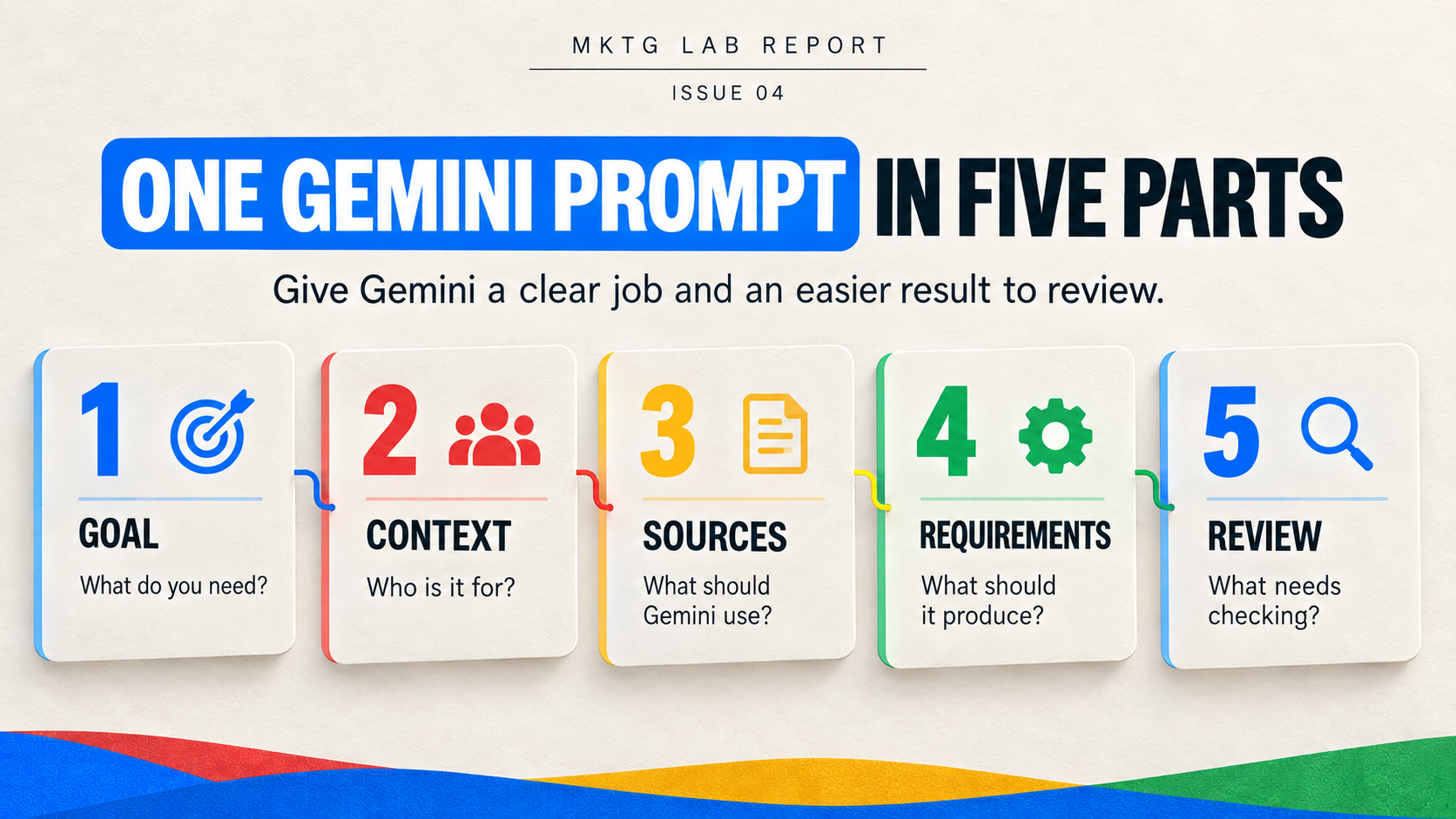
You can use this structure in the Gemini app or inside Gmail, Drive, Docs, Sheets, and Slides. The buttons may change, but the basic method stays useful.
Choose your first Gemini task
You do not need to work through these examples in order.
Start with the problem that appears most often in your week.
| If you need to… | Start in… | The useful result is… |
|---|---|---|
| Understand a long customer or project conversation | Gmail | A reviewed action plan and response draft |
| Clarify what happened and what comes next | Meet, Drive, or Docs | Confirmed decisions, actions, owners, dates, and questions |
| Turn scattered notes into something useful | Docs | A structured first draft for a specific reader |
| Understand what business data is showing | Sheets | A verified observation, question, or next action |
| Present an approved recommendation | Docs, Drive, and Slides | A reviewable presentation story and slide plan |
If you need to…
Start in…
Gmail
The useful result is…
A reviewed action plan and response draft
If you need to…
Start in…
Meet, Drive, or Docs
The useful result is…
Confirmed decisions, actions, owners, dates, and questions
If you need to…
Start in…
Docs
The useful result is…
A structured first draft for a specific reader
If you need to…
Start in…
Sheets
The useful result is…
A verified observation, question, or next action
If you need to…
Start in…
Docs, Drive, and Slides
The useful result is…
A reviewable presentation story and slide plan
For your first attempt, choose information that is not sensitive and that you know well enough to spot a mistake.
If you are uncertain about business or customer information, read Protect sensitive business and customer information before beginning.
Starter task 1: Turn a Gmail conversation into an action plan
Email is a useful place to begin because the problem is familiar.
A customer asks a question. Several people reply. The subject changes. Someone suggests a date. Someone else refers to an attachment. When you return to the conversation, you are trying to determine what was decided, what is still open, and whether you promised to do something.
Gemini can help organize that information before you respond.
A simple workflow
- Open the Gmail conversation you want to understand.
- Ask Gemini to separate facts, decisions, suggestions, questions, dates, and requested actions.
- Review the original messages or source links.
- Correct the summary before asking for a response draft.
- Review the response for recipients, tone, attachments, promises, and deadlines.
Summarize this Gmail conversation for me.

Separate:
- Decisions already made
- Suggestions that have not been approved
- Unanswered questions
- Dates or deadlines
- Actions requested from me
- Commitments I appear to have made

Identify the source message for every important item.
Use the newest relevant information.
Do not treat a suggestion as an approved decision.

Then draft a concise response that confirms the next steps
and asks for clarification wherever the conversation is incomplete.
What to check
Return to the conversation before sending anything.
Check:
- Whether Gemini used the newest message
- Whether a suggestion was mistaken for a decision
- Whether an attachment changes the answer
- Whether a date includes the correct month, year, and time zone
- Whether the draft creates a promise you did not intend to make
- Whether the correct people should receive the response
How to tell whether it helped
Compare how long it took to understand the conversation and how many corrections were required before the response was ready.
Saving ten minutes is useful only if the result does not create thirty minutes of confusion later.
Starter task 2: Turn meeting information into decisions and follow-ups
Meetings often produce more discussion than clarity.
People share ideas. Someone agrees to follow up. A deadline is mentioned. Another topic is postponed. Then the meeting ends, and everyone leaves with a slightly different understanding of what happened.
Gemini can help turn meeting notes, a transcript, or a related document into a follow-up the group can check.
What you have available will depend on your account and how the meeting was run. Some people may have a transcript or automatic notes. Others may only have the notes they typed themselves. Start with the information you have permission to use.
A simple workflow
- Start with meeting notes, a transcript, a summary, or another file you are allowed to use.
- Ask Gemini to distinguish decisions from ideas and unresolved discussion.
- Require it to mark unstated owners or dates as missing.
- Review every attribution, commitment, and deadline.
- Send a follow-up that invites participants to correct the record.
Using only these approved meeting notes or files, organize the information into:
- Decisions made
- Action items
- Named owners
- Due dates
- Open questions
- Risks or dependencies

Write "not assigned" when an owner or date was not stated.
Separate confirmed decisions from ideas or recommendations.
Do not invent agreement or attribute a statement without support.

End with a short follow-up message asking participants
to correct anything that is incomplete or inaccurate.
What to check
Review:
- Whether participants knew the meeting was being recorded or summarized when required
- Whether the source material is complete
- Whether Gemini confused an idea with a decision
- Whether an owner actually accepted an action
- Whether dates and time zones are correct
- Whether a statement was attributed to the right person
How to tell whether it helped
Track how many action items leave the meeting with a confirmed owner and date.
The purpose is not to create a longer meeting summary. It is to create clearer follow-through.
Starter task 3: Turn rough notes into a clear Google Doc
Many useful documents begin as scattered material.
A consultant may have notes from a client call. A creator may have ideas for a launch. A small-business owner may have an old proposal, customer questions, and a blank Google Doc waiting for a first draft.
Gemini can help organize that material, but it still needs to know what you are creating and who needs to use it.
A simple workflow
- Define the document, audience, purpose, and desired next action.
- Select the approved notes or Drive sources.
- Specify the structure and tone.
- Ask Gemini to flag missing evidence, decisions, dates, prices, or approvals.
- Review voice, facts, promises, and confidential information.
Turn these approved notes into a [DOCUMENT TYPE] for [AUDIENCE].

The document should help the reader [PURPOSE].

Use this structure:
[REQUIRED SECTIONS]

Preserve the facts and examples in the source material.
Mark missing evidence, dates, prices, approvals, or commitments
as questions instead of inventing them.

Use plain language and end with one clear next action.
What to check
Review:
- Claims and supporting evidence
- Prices, dates, and quantities
- Contractual or legal language
- Customer or employee information
- Whether the voice sounds like you or your brand
- Whether the draft adds commitments that were not approved
- Whether the next action is clear
How to tell whether it helped
Measure the time from scattered notes to a reviewable first draft.
Also count how many unsupported additions you had to remove. A fast draft is not useful if it quietly changes the meaning of the source material.
Starter task 4: Ask a Google Sheet a business question
A spreadsheet becomes more useful when it helps you make a decision.
Gemini in Sheets can help organize a table, suggest a formula, or answer questions about the information in front of you when those features are available.
But the quality of the answer still depends on the quality of the table and the question.
If dates are stored three different ways, categories do not match, totals contain errors, or an important sales or marketing channel is missing, Gemini may give you a confident answer based on a weak spreadsheet.
A simple workflow
- Make the Sheet understandable with consistent headers, dates, categories, and formats.
- State the question you are trying to answer or the decision you need to make.
- Ask Gemini to identify data-quality problems before interpreting performance.
- Separate what the numbers show from possible reasons behind them.
- Verify important formulas, calculations, filters, and source rows.
Help me understand this Sheet so I can decide [DECISION].

Before analyzing performance, inspect the table for:
- Missing values
- Duplicate records
- Inconsistent labels
- Date or number-format problems
- Outliers that may need review

Then answer:
[BUSINESS QUESTION]

Separate:
1. What the data directly shows
2. Possible explanations that require more evidence
3. What I should verify next

Identify the rows, columns, formulas, or filters supporting each important observation.
Do not invent a cause from correlation alone.
What to check
Review:
- The date range
- Units, currencies, and percentages
- Filters and hidden rows
- Missing or duplicated information
- Calculated fields and formulas
- Whether an observation is being presented as a cause
- Whether the data is complete enough to support the decision
How to tell whether it helped
The useful outcome is not simply another chart. It is a checked observation, a better question, a test you can run, or a decision you can explain.
If you need a broader system for turning marketing information into decisions, read How to Build a Marketing Dashboard With AI.
Starter task 5: Turn an approved document into a presentation plan
A presentation is not simply a document divided into slides. It needs a clear point, a specific audience, a useful order, and enough evidence to support the recommendation.
Gemini can help turn a document or a few Drive files into a presentation plan. You still need to check the facts, improve the flow, apply your brand, and make sure the presentation leads to the right decision.
A simple workflow
- Begin with an approved document or small set of Drive files.
- Define the audience and decision the presentation must support.
- Ask for the story and sequence before requesting individual slides.
- Require a source note for important claims, numbers, and recommendations.
- Review the wording, visuals, layout, evidence, and speaker notes.
Using only these approved documents, create a presentation plan for [AUDIENCE].

The presentation should help them decide [DECISION].

Before creating slides, propose a clear story with:
- The current situation
- The most important evidence
- The problem or opportunity
- The recommended action
- Risks or tradeoffs
- The next decision

Then create a slide-by-slide outline.
For each slide, include:
- One main message
- The evidence or source supporting it
- A recommended visual
- A short speaker-note summary

Mark unsupported claims, missing numbers, or unapproved recommendations
instead of filling the gaps.
What to check
Review:
- Whether the presentation answers a real audience question
- Whether each slide has one clear job
- Whether claims and numbers match the sources
- Whether generated visuals fit the message and are accurate
- Whether the design is readable and consistent with the brand
- Whether speaker notes introduce anything that was not approved
- Whether the final slide asks for a specific decision or next action
How to tell whether it helped
Measure how long it takes to reach a useful first outline and how many of the suggested slides are worth keeping.
More slides do not mean a better presentation.
Review the result before you use it
Every workflow in this guide depends on review.
Gemini may produce a response that looks finished before it is ready. Use the checklist below before sending, sharing, presenting, publishing, or acting on the result.
Source
- Did Gemini use the intended email, file, meeting note, document, or Sheet?
- Did it use the newest relevant information?
- Can you open and inspect the sources it identified?
Facts
- Are names, dates, figures, formulas, links, and quotations correct?
- Does the result distinguish what is known from what is inferred?
Context
- Did Gemini understand the audience and business situation?
- Did it understand what decision or action the work should support?
Completeness
- What important information is missing?
- Did the source material contain gaps that should be resolved before using the result?
Boundaries
- Did Gemini add a promise, conclusion, recommendation, or assumption that was not approved?
- Did it use information outside the sources you intended?
Voice
- Does the result sound like you, your organization, or your brand?
- Is the tone respectful and clear?
Action
- Does the output lead to a useful next step?
- Is the next action assigned to the right person with the right date?
A final-review prompt
Use this prompt as an additional inspection step—not as a replacement for your own review.
Review this result before I use it.

Create a table with these columns:
- Claim, number, date, formula, or commitment
- Source
- Confidence based on the source
- What still needs human verification

Then identify:
- Unsupported statements
- Missing context
- Possible outdated information
- Ambiguous owners or deadlines
- Language that creates an unapproved promise

Do not rewrite the result yet.
Show me what needs to be checked first.
The goal is not to make Gemini grade its own work.
The goal is to make important details easier for you to inspect.
Protect sensitive business and customer information
Seeing a Google logo does not mean every Gemini account handles information in the same way.
The privacy rules can be different depending on whether you use a personal account or a work account managed by an organization. Your plan, settings, and the Google service you are using can also matter.
Before adding customer, employee, or other private business information, check the current Gemini for Google Workspace FAQ. If you use a work or school account, follow your organization's rules as well.
Ask six questions before beginning:
- Which Google Account am I using?
- Is this my personal account or a work or school account?
- Am I using the Gemini app or Gemini inside a Google Workspace app?
- Is this use allowed by my organization?
- Do I have permission to use the source information for this task?
- Can I complete the task with less information or a redacted example?
Unless you know it is safe and allowed, do not add:
- Customer or prospect records
- Employee or applicant information
- Passwords, credentials, or security details
- Contracts and legal matters
- Health information
- Payment or banking information
- Unpublished financial results
- Confidential business plans
- Other information that could identify a person
If you are not sure, stop and ask the person who handles privacy, security, legal questions, or your Google Workspace account.
Do not move sensitive information into a personal Google Account because a feature is unavailable in your work account.
An easier shortcut is not worth putting private information in the wrong place.
Run a seven-day Gemini pilot
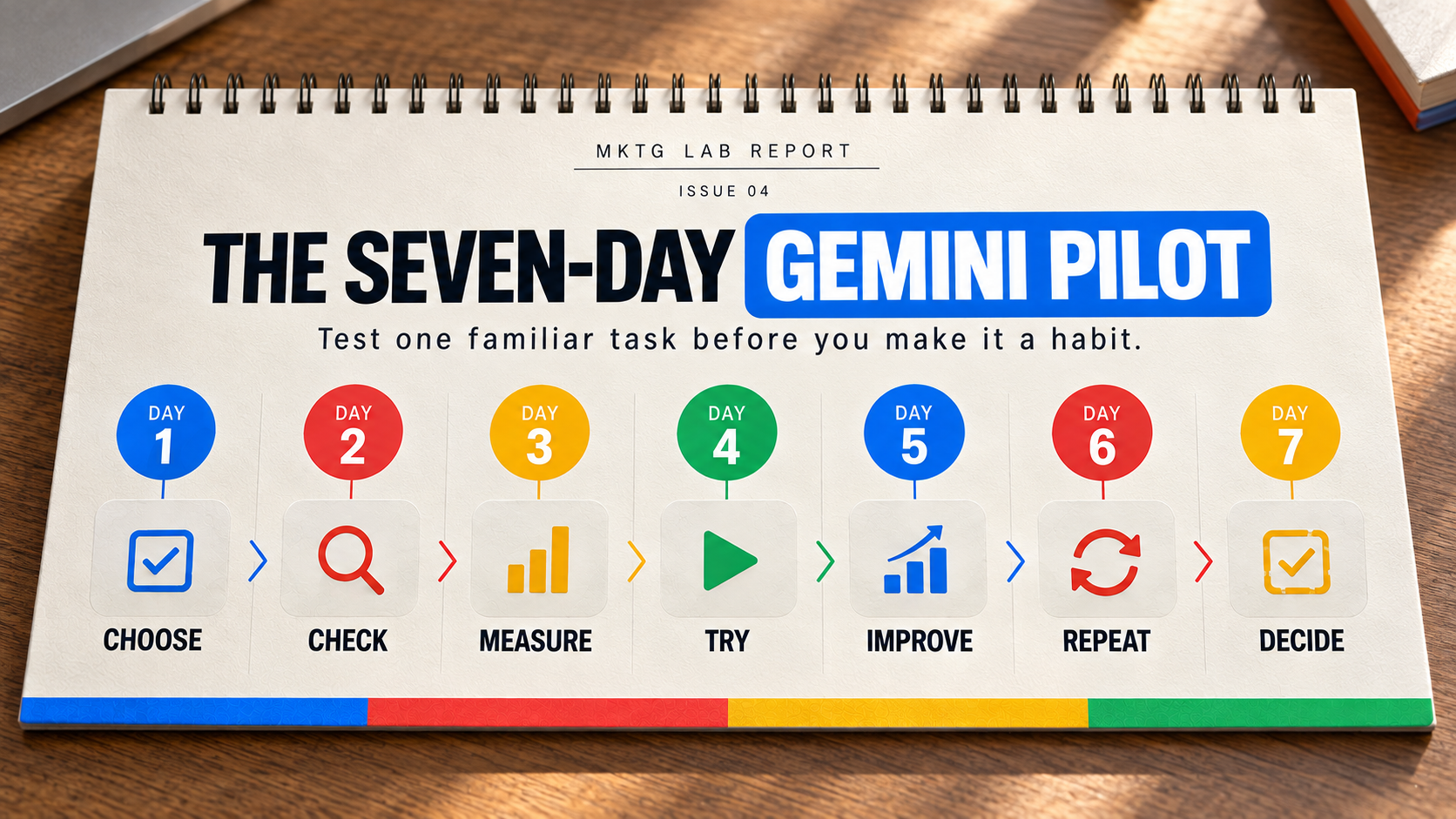
You do not need a large AI program to learn whether Gemini is useful for your work.
Run a small pilot around one repeated task.
Day 1: Choose one task
Choose a task that:
- Occurs at least weekly
- Takes enough time to be worth improving
- Uses information you are allowed to use
- Produces an output you know how to review
- Has a clear definition of success
Good examples include summarizing a recurring customer conversation, organizing weekly meeting actions, developing a first draft from approved notes, reviewing a familiar performance Sheet, or preparing a presentation outline.
Day 2: Confirm your account and access
Identify:
- The Google Account you are using
- Whether it is personal, work, or school managed
- Where Gemini appears
- Which sources it can use
- Which policies apply
If the task requires information you should not use, choose another task.
Day 3: See how the task works today
Complete the task the way you normally would.
Record:
- How long it takes
- Where you usually get stuck
- Which mistakes commonly occur
- What a useful result must contain
If you do not know how the task works today, it is hard to tell whether Gemini really improved it.
Day 4: Run the first Gemini-assisted version
Use the five-part prompt structure:
- Goal
- Context
- Sources
- Requirements
- Review
Record how long the task takes and every correction required.
Day 5: Improve the instruction
Do not immediately add more tools.
Improve the workflow by:
- Using fewer, more relevant emails or files
- Clarifying the audience
- Defining the output more precisely
- Asking Gemini to point out what it is unsure about
- Adding a stronger review checklist
Day 6: Repeat the task
Use a second real example of the same task.
Compare:
- Time required
- Corrections needed
- Whether Gemini used the right information
- Quality of the result
- Confidence before sharing
One good result is encouraging. A second example helps you see whether the method will work again.
Day 7: Decide what to do next
Choose one of four outcomes:
Keep it. Gemini consistently improves the work without creating too much extra review.
Change it and test again. The idea is useful, but the information, prompt, or review steps need work.
Use Gemini for only part of the task. It may be helpful for organizing information but not for deciding what to recommend.
Stop using it for this task. The corrections, risk, or difficulty outweigh the benefit.
Use a simple pilot scorecard
Score each item from 1 to 5:
| Measure | Question |
|---|---|
| Time saved | Did the workflow reduce the time required? |
| Corrections | How much needed to be fixed? |
| Correct information | Did Gemini use the right and most current information? |
| Usefulness | Did the result support a real decision or action? |
| Privacy | Was the information safe and allowed to use with this account? |
| Confidence | Would you feel comfortable sharing the reviewed result? |
Measure
Time saved
Question
Did the workflow reduce the time required?
Measure
Corrections
Question
How much needed to be fixed?
Measure
Correct information
Question
Did Gemini use the right and most current information?
Measure
Usefulness
Question
Did the result support a real decision or action?
Measure
Privacy
Question
Was the information safe and allowed to use with this account?
Measure
Confidence
Question
Would you feel comfortable sharing the reviewed result?
Do not keep a workflow simply because it uses AI.
Keep it because it improves the work.
Save the advanced tools for later
Google also offers tools and features such as NotebookLM, Gems, Google Vids, and Google Workspace Studio. They may be useful for research, reusable assistants, video creation, or more advanced automation.
You do not need them to get started.
First, learn how Gemini handles one familiar task. Once that method is useful and repeatable, you can decide whether a more advanced tool would make it better. Those options are better handled in separate guides so beginners do not have to sort through everything at once.
Start with one task
You do not need to master every Gemini feature before you can get value from it.
Choose one familiar task.
Use the right account. Choose only the emails or files the task needs. Give Gemini a clear goal, context, and format. Ask it to point out gaps. Check the result. Then decide whether it improved the work.
That is a more useful beginning than trying to use AI everywhere at once.
If your work happens primarily in Microsoft tools, read Getting Started With Microsoft Copilot in Microsoft 365.
If you want broader examples that are not tied to one platform, explore 7 Practical AI Workflows You Can Use to Grow Your Business or Brand.
Then choose one task and run the seven-day pilot.
The goal is not to add more AI to your week. It is to make one useful part of your work clearer, faster, and easier to move forward.
Google, Gemini, Gmail, Google Drive, Google Meet, Google Docs, Google Sheets, Google Slides, Google Chat, NotebookLM, and related names and marks are trademarks of Google LLC. This independent educational guide is not affiliated with or endorsed by Google.